Chat
Learn how to use the CoPilot chat interface to create, edit, and manage your content.
The chat is the main interface to interact with CoPilot. You can open it from the control panel sidebar or directly from an entry editor.
Main Chat
The main chat is accessible from the control panel sidebar under the CoPilot menu item. Use it for general content tasks like creating entries, searching content, or translating across sites.
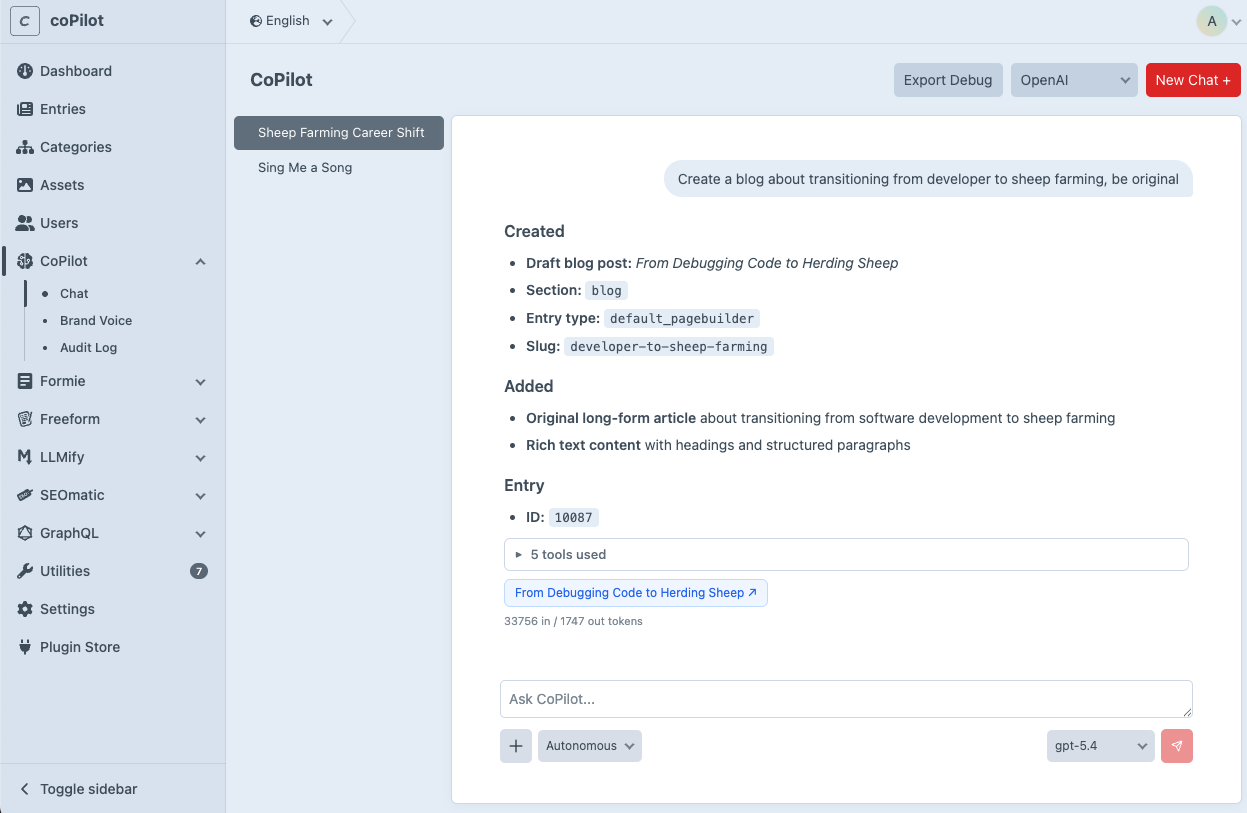
Entry Slideout
When editing an entry, click the CoPilot button in the toolbar to open a chat slideout. The slideout automatically loads the current entry as context, so the agent knows exactly what you're working on. Conversations started from the slideout are linked to that specific entry.
Chat Features
The chat interface offers several features to help you work efficiently with the agent. Here's an overview of the available options.
Add Context
You can attach entries, assets, or files to your message to give the agent additional context. Click the attachment button next to the input field to browse and select content. This is useful when you want the agent to reference or compare specific entries.
Execution Mode
The execution mode controls how the agent handles write operations:
- Supervised (default): The agent asks for your approval before making any changes. Recommended for production environments.
- Autonomous : The agent executes all operations without asking for confirmation. Useful for development or repetitive bulk tasks.
You can switch between modes at any time using the dropdown in the chat input area. Admins can restrict this per user group via Permissions.
In autonomous mode, the agent will create, update, and publish entries without confirmation. Use with caution.
Multiple Providers
If you've configured more than one AI provider, you can switch between them in the chat header. Each provider has different strengths – check the AI Providers overview for a comparison.
Model Selection
Within each provider, you can choose a specific model. Smaller models are faster and cheaper, while larger models produce higher quality results. The model can be changed per conversation via the chat header.
Commands
Commands are predefined prompts that you can trigger by typing / in the chat input. They provide shortcuts for common tasks and workflows.
Some commands accept a parameter to make them more flexible. A parameter can be an entry, asset, file, or free text that gets injected into the command's prompt. For example, a /translate command could ask you to select an entry, then automatically translate it.
CoPilot ships without built-in commands, but your team can register custom commands tailored to your content workflows. See the Custom Commands guide for instructions on how to create your own.
Tools
Tools are the actions the agent can perform on your behalf. They include searching entries, reading content, creating and updating entries, managing assets and categories, and more.
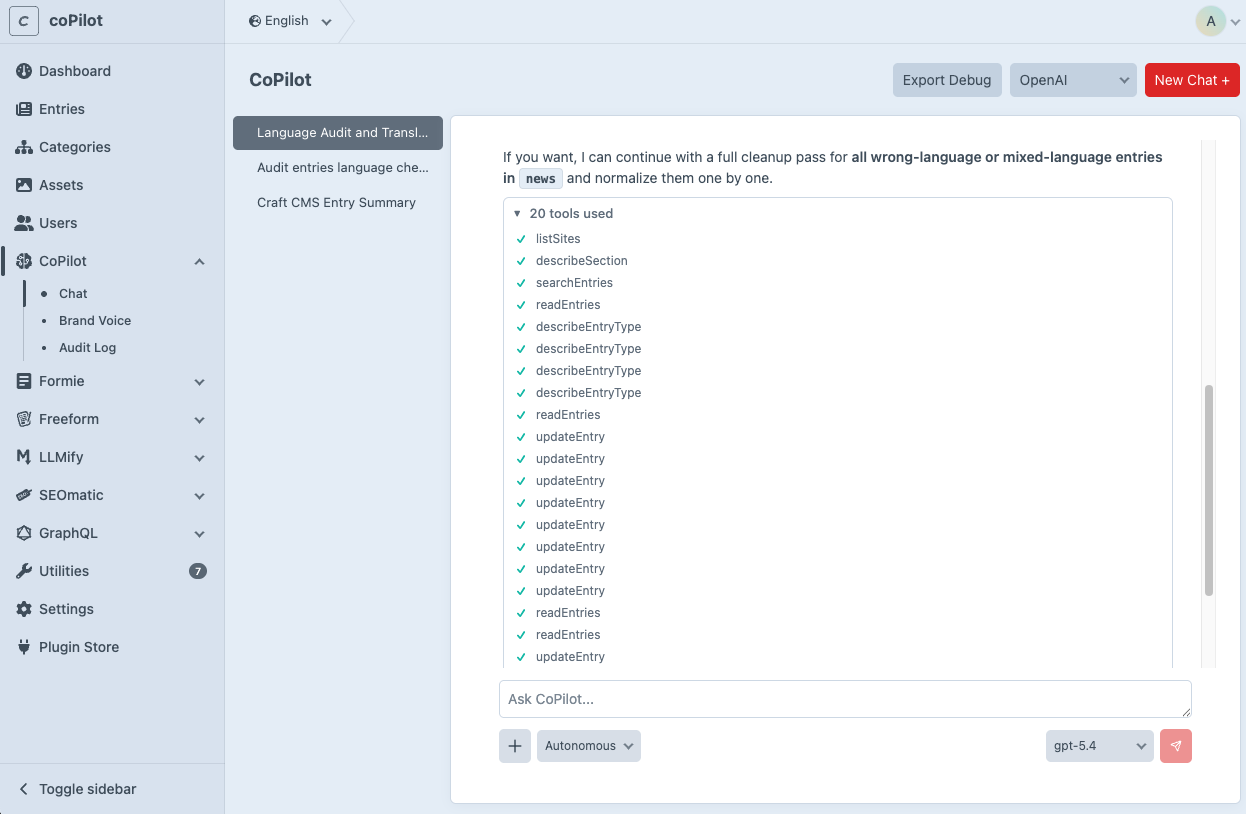
For a full list of available tools and what each one does, see the Tools overview.
Developers can also extend the agent with custom tools – see the Custom Tools guide.